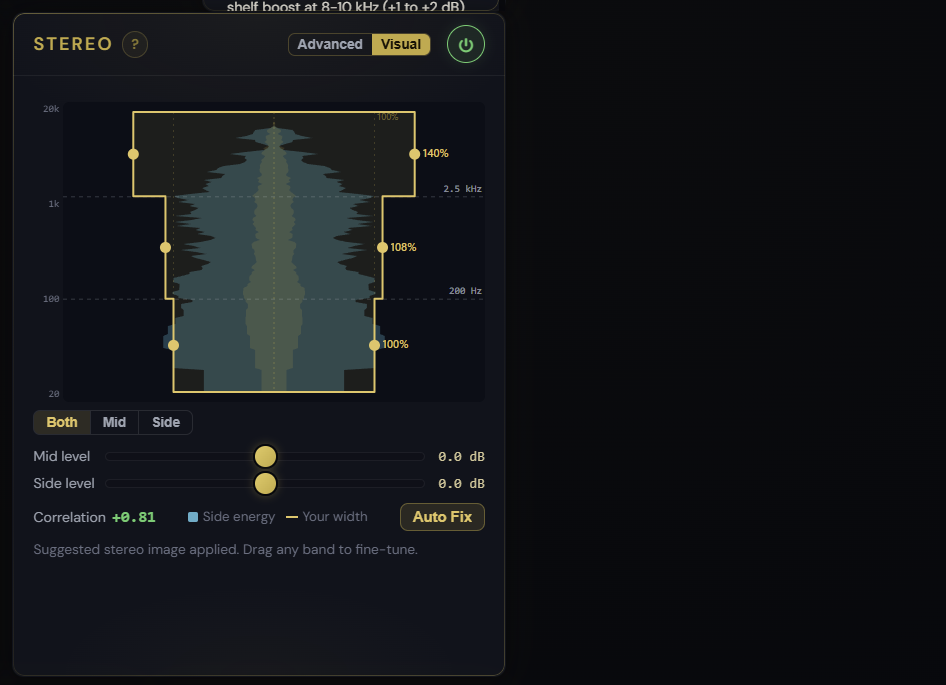
Stereo width is one of the most useful tools for AI music, and one of the least visual. You set a number for the low band, a number for the mids, a number for the highs, and hope. The Stereo panel now has a Visual view that turns those numbers into a shape you can see and drag.
An hourglass you can grab
Your stereo image is drawn as an hourglass over a vertical frequency axis: bass at the bottom, highs at the top, mono down the centre. The width of the shape at any height is the stereo width there. Drag a band sideways to narrow the bass toward mono, widen the mids, or open the highs for air. The width percentage and the crossover frequencies update live as you drag, so you always know exactly where you are.
See where the stereo actually is
Behind the shape is the real Mid and Side spectrum of your track. The Side channel, the part that carries the stereo, is drawn so you can see which frequencies are wide and which are nearly mono before you change anything. AI tracks often pile stereo energy into odd places; now you can see it. Switch between Both, Mid, and Side views, and use the separate Mid level and Side level controls to balance the centre against the sides.
A starting point in one click
Auto Fix looks at your track and suggests a tasteful stereo image: a tighter low end, natural mids, a little more openness up top. Apply it, then fine-tune by ear. And if you prefer the full set of sliders, Advanced is one click away and stays in sync. It is the same stereo engine underneath, just a clearer way to drive it.